Zoom Integration Guide
Last updated: 2026-07-28
HiKLabs connects prospective graduate students with university research labs in Korea. Lab users (faculty) connect their own Zoom account to host admission interviews. During an interview, HiKLabs uses Zoom Real-Time Media Streams (RTMS) to transcribe the meeting audio and generate an AI-assisted interview report. HiKLabs does not store meeting video.
This guide covers three things: how to add the integration, how to use it, and how to remove it.
Adding the app
Prerequisites
- A HiKLabs account with the Lab (faculty) role.
- A Zoom account you control, with permission to authorize third-party apps (some Zoom accounts require an administrator to pre-approve the app).
- A modern browser with pop-ups enabled for dashboard.hiklabs.com.
Steps
- Sign in to HiKLabs at dashboard.hiklabs.com with your lab account.
- Go to the Applications page (/lab/applications). The Zoom control is in the top-right of the page header. Select Zoom 연결 (Connect Zoom).
- You are redirected to Zoom's consent screen. Review the requested permissions and select Allow.
- Zoom returns you to /lab/applications. The header now shows your connected Zoom account (name and email) with a Zoom 계정 변경(Change account) button. Your account is ready to create interview meetings.
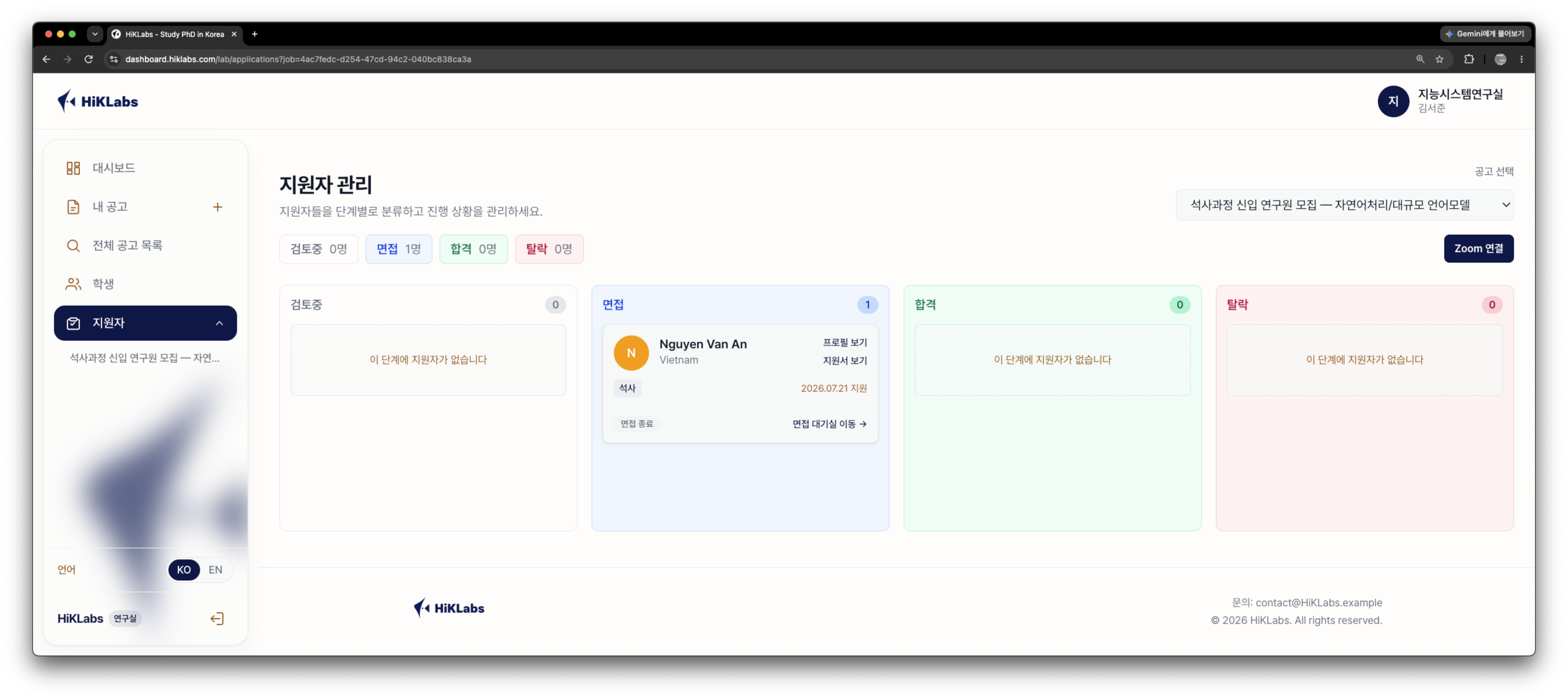
/lab/applications) 페이지 헤더 우측에 Zoom 연결 버튼이 있습니다. / Before connecting: the Zoom 연결 (Connect Zoom) button in the page header.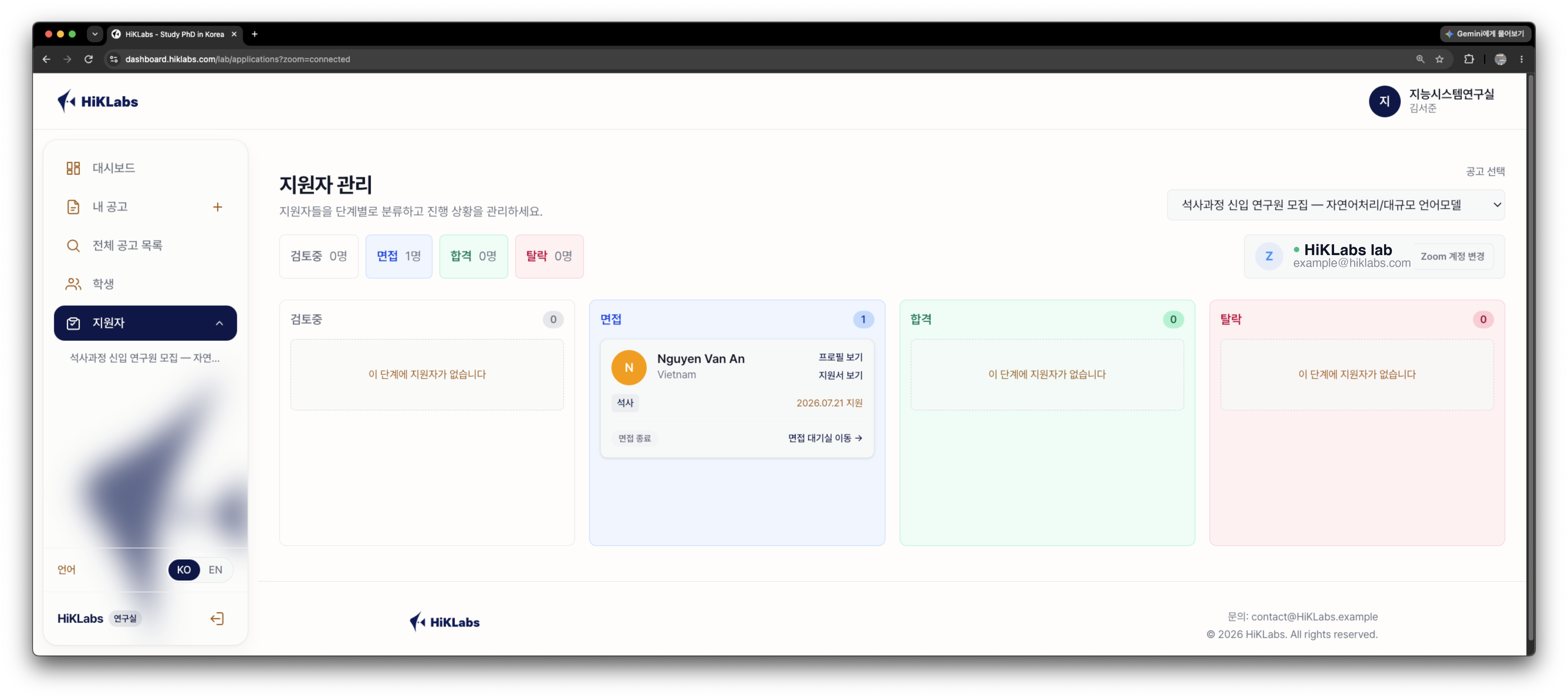
Permissions we request & why
- View your user profile — to identify the connected Zoom account.
- Create meetings on your behalf — to create the interview meeting.
- Start real-time media streams (RTMS) — to transcribe interview audio for the interview report.
Troubleshooting (adding)
- Consent screen doesn't open: allow pop-ups for dashboard.hiklabs.com and retry.
- "App not approved" on the Zoom screen: your Zoom account admin must approve the app in the Zoom Marketplace. Ask your Zoom administrator, or contact us.
- Redirect fails / returns an error: sign out and back in to HiKLabs, then reconnect. If it persists, contact support@hiklabs.com.
Using the app
What it does
- Creates a Zoom meeting for each interview directly from HiKLabs.
- Transcribes the interview audio in real time via Zoom RTMS while the meeting is live.
- Generates an AI interview report (summary and evaluation) from the transcript for the lab reviewer.
Typical flow
- From an application, the lab user schedules or starts an interview; HiKLabs creates the Zoom meeting.
- The interviewer and applicant join the Zoom meeting at the scheduled time. Meeting audio is streamed to HiKLabs and transcribed while the meeting is live.
- After the interview, HiKLabs generates the interview report. The lab user reviews it in the application's interview report page.
Prerequisites for use
- A connected Zoom account (see "Adding the app").
- An application with an interview to conduct.
- Participants should be informed that the interview is transcribed, consistent with applicable law and the notice shown before the interview.
Note on recording
HiKLabs processes meeting audio for transcription only and does not store meeting video. See the Privacy Policy for what is collected and how long it is retained.
Removing the app
How to remove
You can disconnect from inside HiKLabs: open /lab/profile/setup and select 연동 해제(Disconnect) in the Zoom account card. This revokes HiKLabs' authorization with Zoom and deletes the stored OAuth tokens and account snapshot.
You can also remove the app from Zoom Marketplace, which has the same effect:
- Sign in at marketplace.zoom.us.
- Go to Manage → Added Apps (or Installed Apps).
- Find HiKLabs and select Remove.
The Zoom 계정 변경 (Change account) button on /lab/applications only replaces the connected account — use 연동 해제 or Zoom Marketplace above to remove the integration entirely.
What happens when you remove it
- HiKLabs can no longer create meetings or transcribe interviews on your behalf.
- Zoom sends a deauthorization notification to HiKLabs. In response, we delete your Zoom OAuth tokens and Zoom account details (Zoom user ID, account ID, email, display name).
- Existing interview transcripts and reports already generated are retained as part of the admission record, per our retention policy. See the Privacy Policy. To request deletion of that content, contact us (subject to legal retention obligations).
Data handling after removal
Removal revokes HiKLabs' ongoing access to your Zoom account. Data obtained through the Zoom OAuth connection (tokens and account snapshot) is deleted automatically on deauthorization. Requests regarding other data can be sent to support@hiklabs.com.
FAQ & troubleshooting
- Transcription didn't start. Ensure the Zoom account is still connected, the meeting was created from HiKLabs, and RTMS is permitted on your Zoom account. Reconnect if needed.
- The report is empty or incomplete. A very short interview or missing audio can reduce transcript quality. Contact support with the interview date and lab name.
- I reconnected but see errors. Fully remove the app from Zoom Marketplace, then connect again from HiKLabs.
- Still stuck? Email support@hiklabs.com — see the Support page for hours and response times.